App Administration
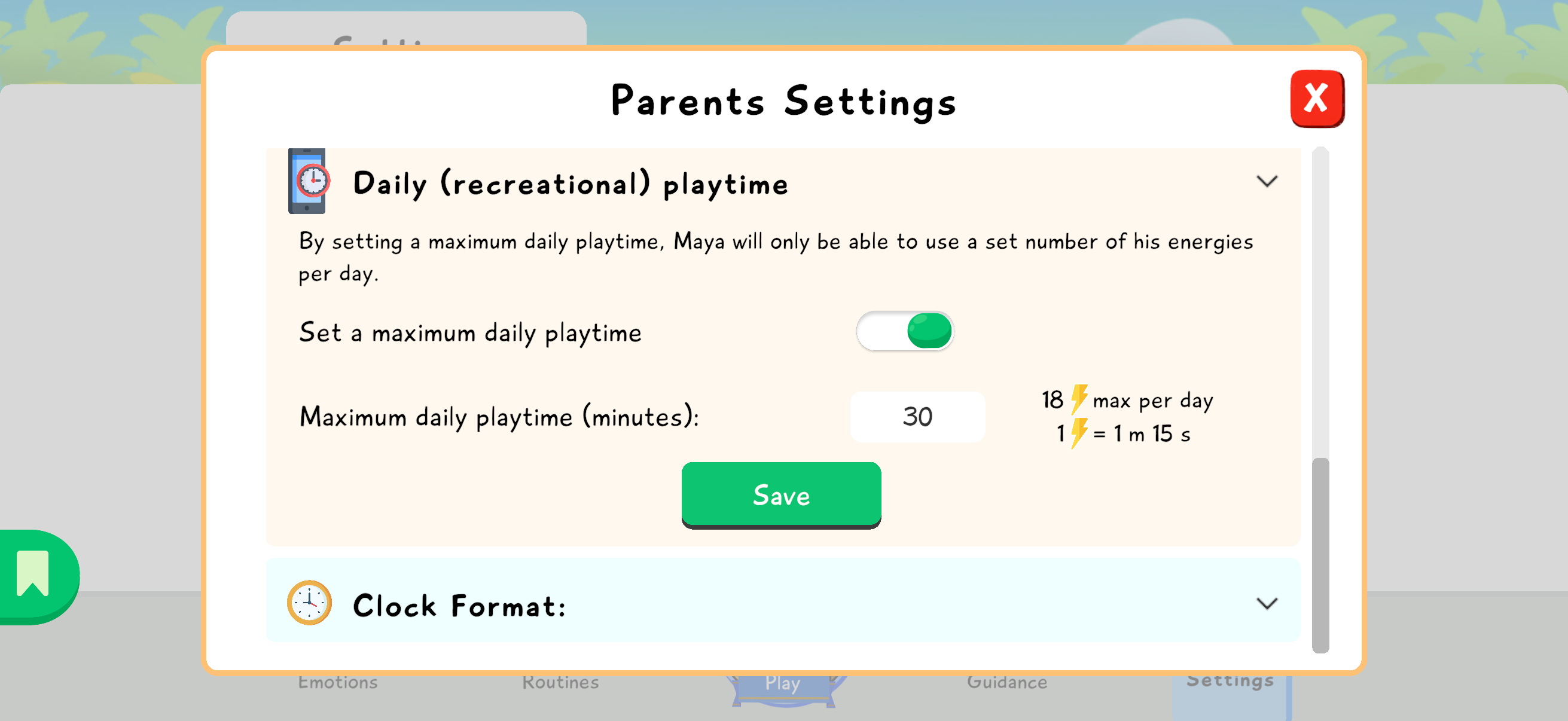
The Settings section gives access to the parent administration areas. Open Parent Settings to manage the agenda, screen time, the child’s level of autonomy, and notifications.
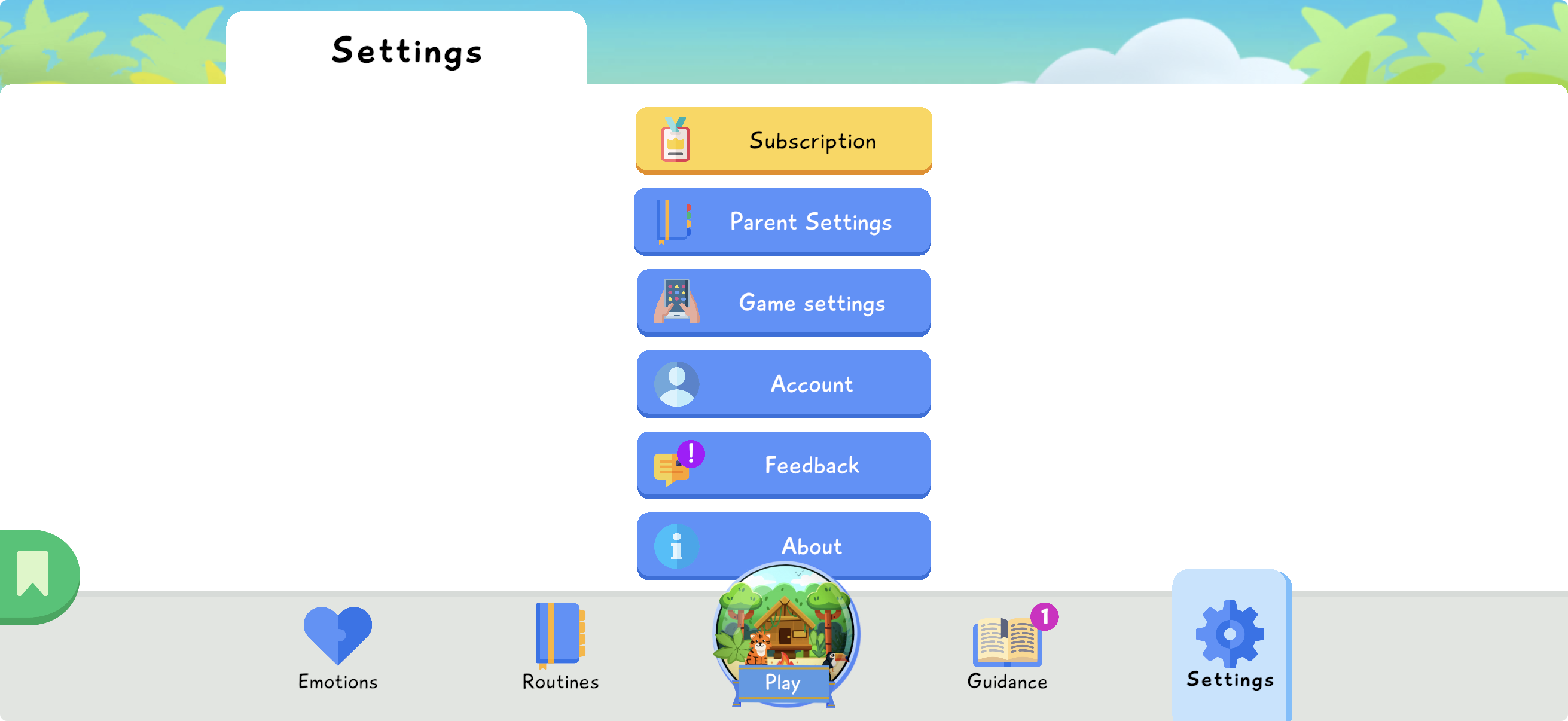
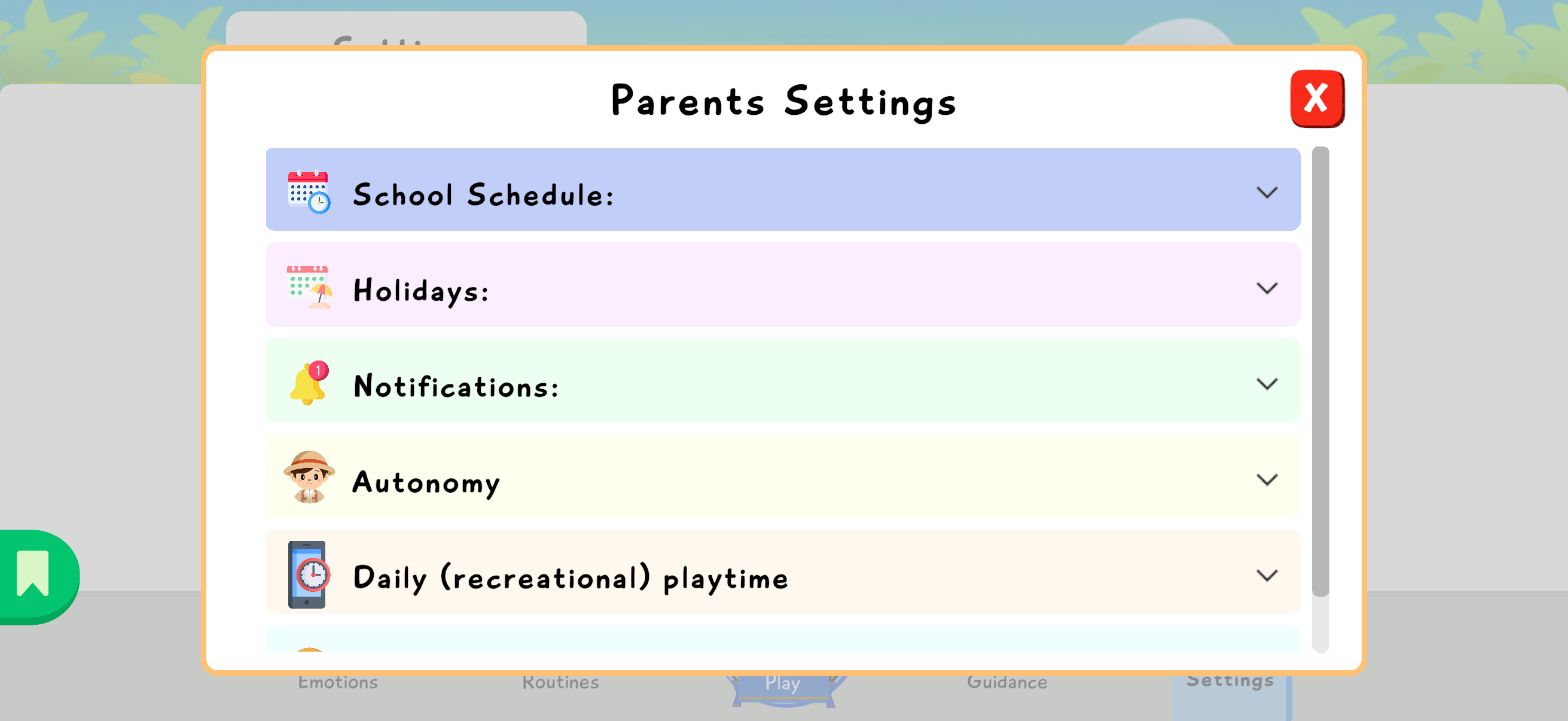
In Settings, open Parent Settings. This section lets you personalize several features that structure daily use of Lusha: the agenda, screen time, the child’s level of autonomy, and notifications.
Agenda: School and Holidays
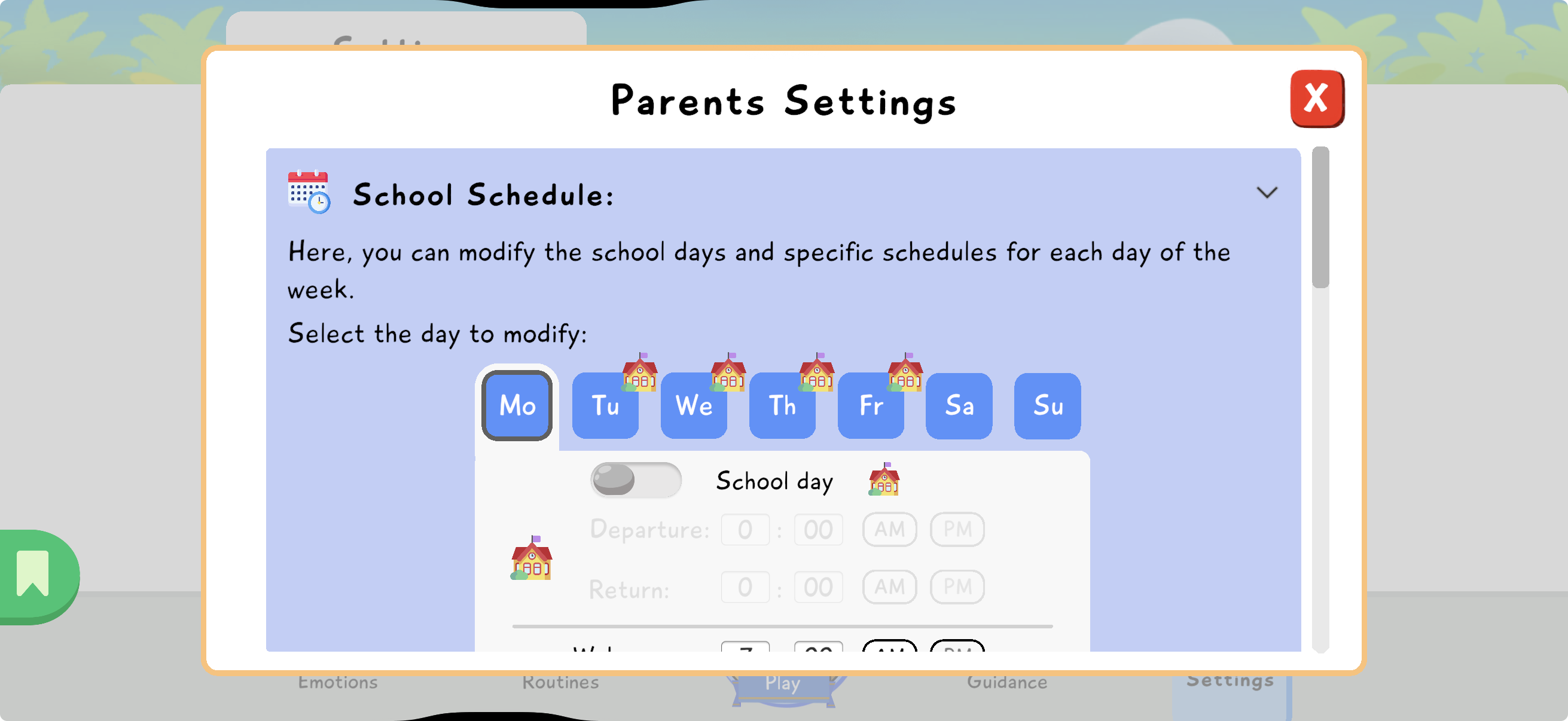
Section titled “Agenda: School and Holidays”You can define school days, as well as the child’s wake-up and bedtime. Times when the child is supposed to sleep or study block the game: the child cannot access it during those periods. This information also helps generate the printable agenda available from the Routines tab.
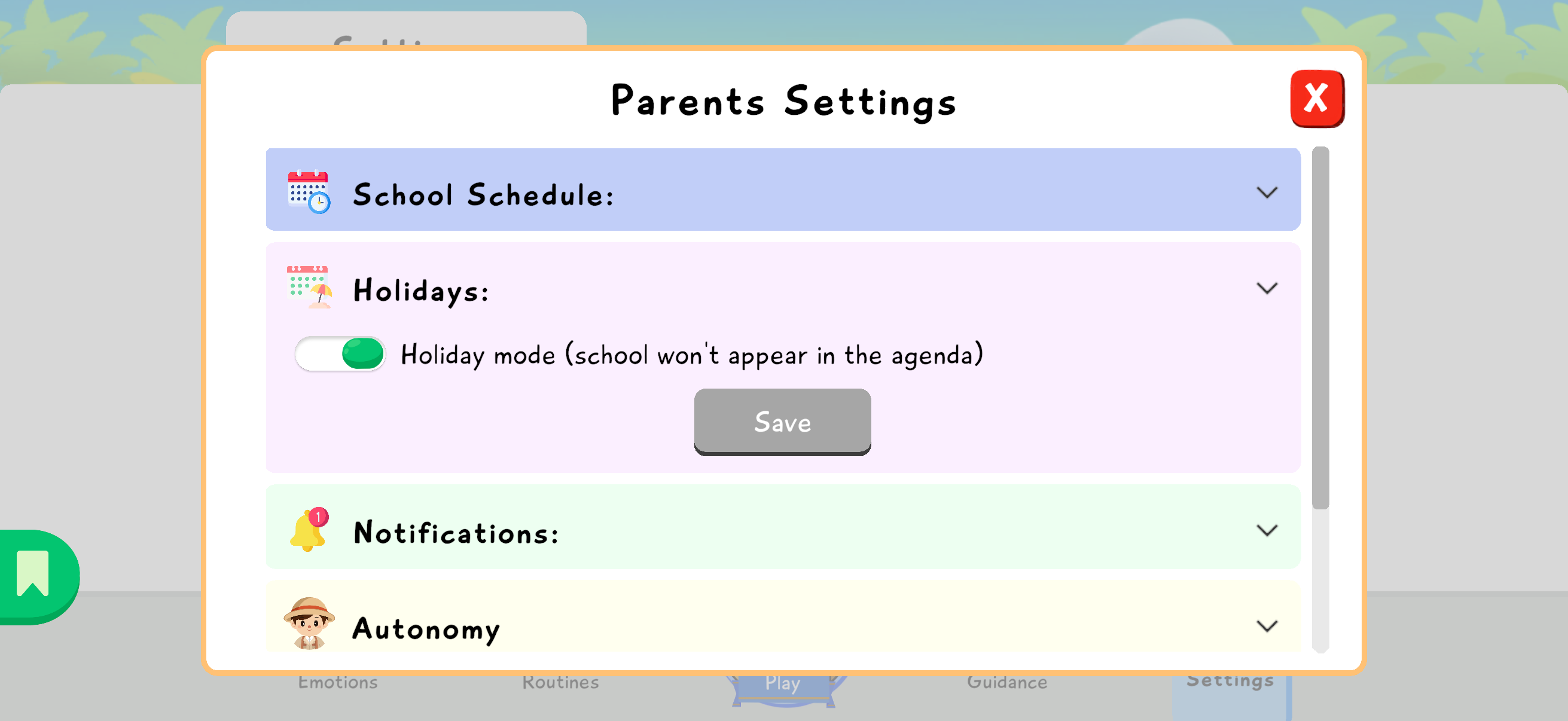
To configure school time, click School Schedule. You can define whether the selected day is a school day or a non-school day, then enter wake-up, bedtime, and, if needed, school-related hours. This must be repeated for each day of the week: several days cannot be edited at once.
You can also activate holiday mode. This mode suspends the school constraint for the duration you choose.
Notifications
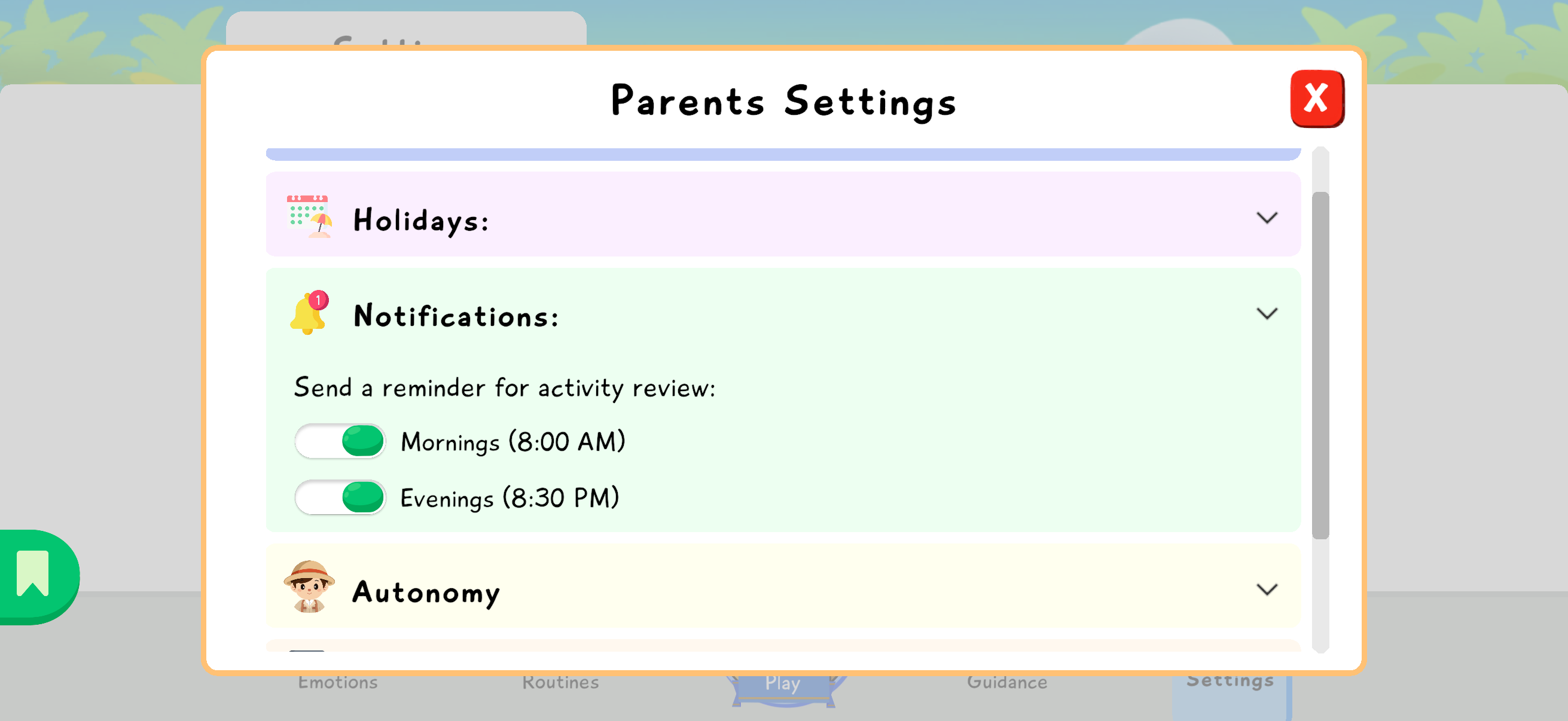
Section titled “Notifications”Lusha can help remind you to validate routines. Choose the best time to receive a reminder: morning, evening, or both depending on your family organization.
Autonomy
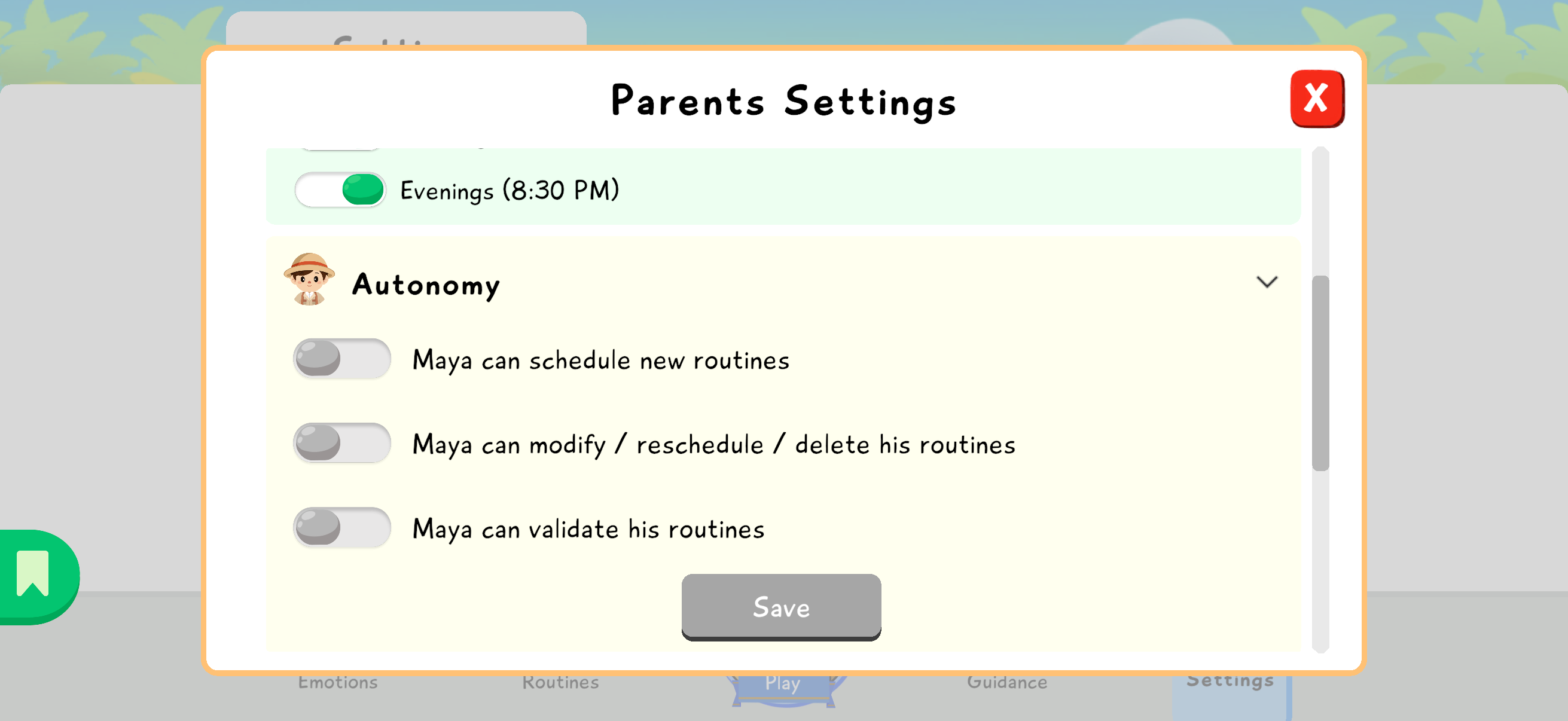
Section titled “Autonomy”Depending on your child’s age and maturity, you can delegate more or less autonomy for managing their agenda. If you allow it, the child can schedule new routines, modify, reschedule, or delete existing routines, and even validate completed routines.
These settings can evolve gradually. You can start with limited autonomy, observe how the child uses it, then open more possibilities if it supports engagement without creating confusion.
Screen Time
Section titled “Screen Time”You have defined a maximum daily screen time. If you wish, you can remove it or adjust it depending on what feels most appropriate for your child.