Game Settings
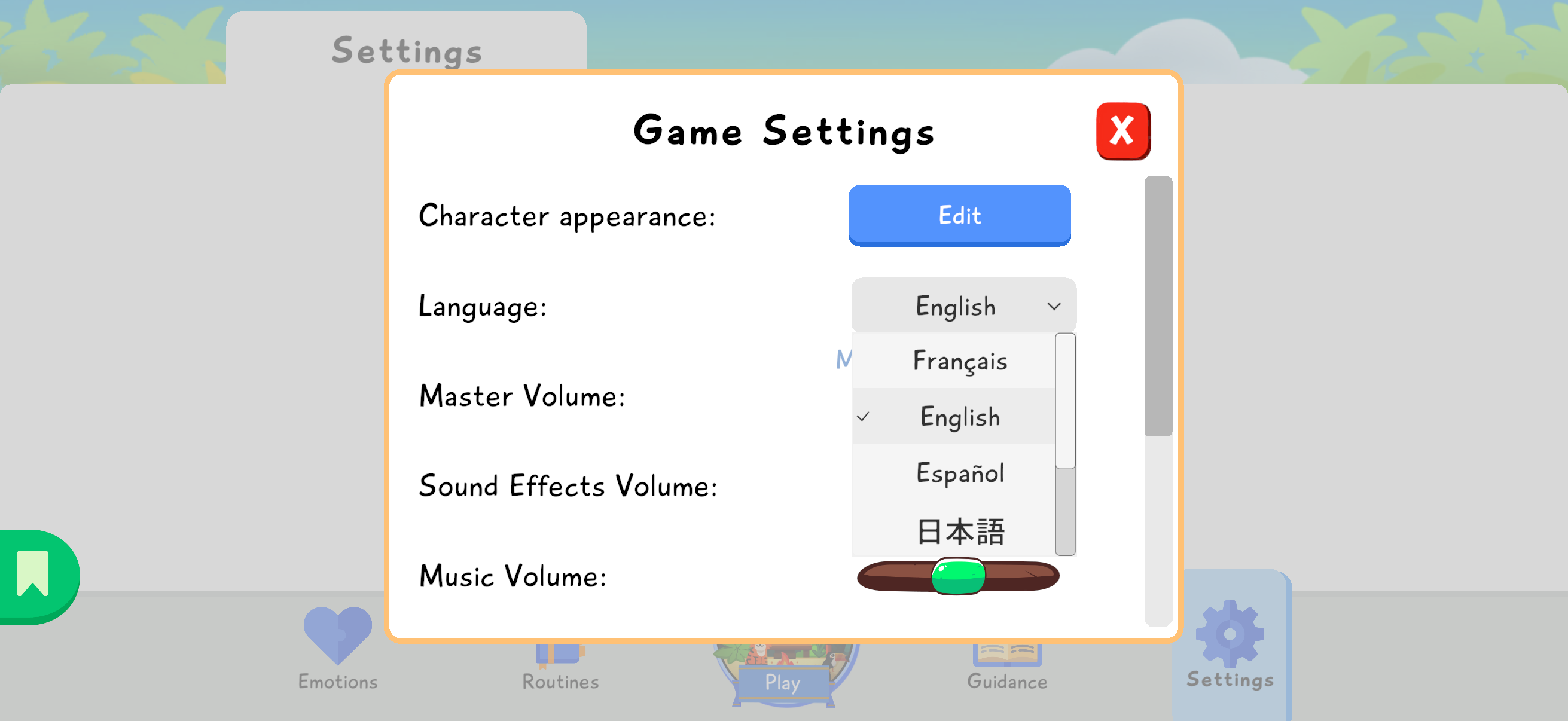
The Settings section gathers options that help adapt Lusha to the child and family. It gives access to game settings, as well as app administration areas.
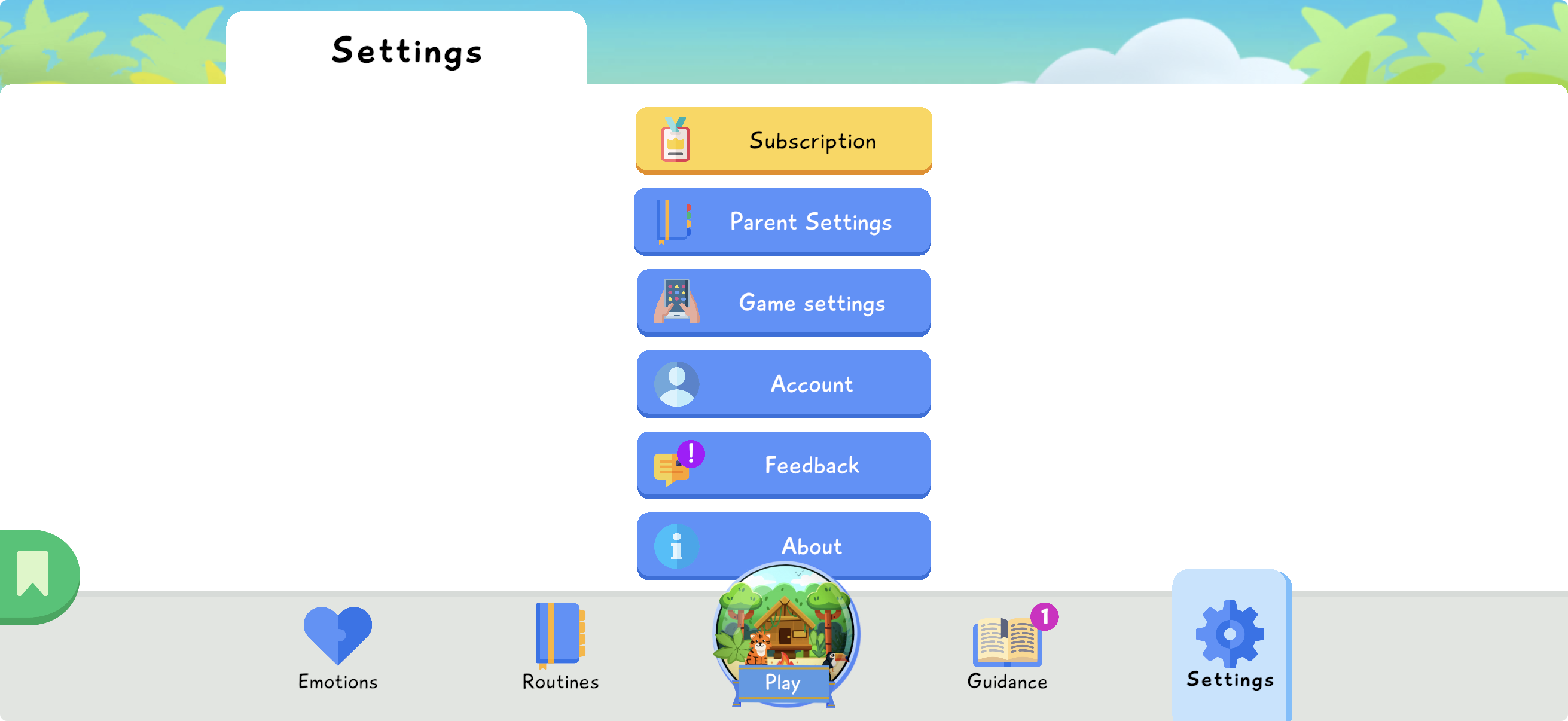
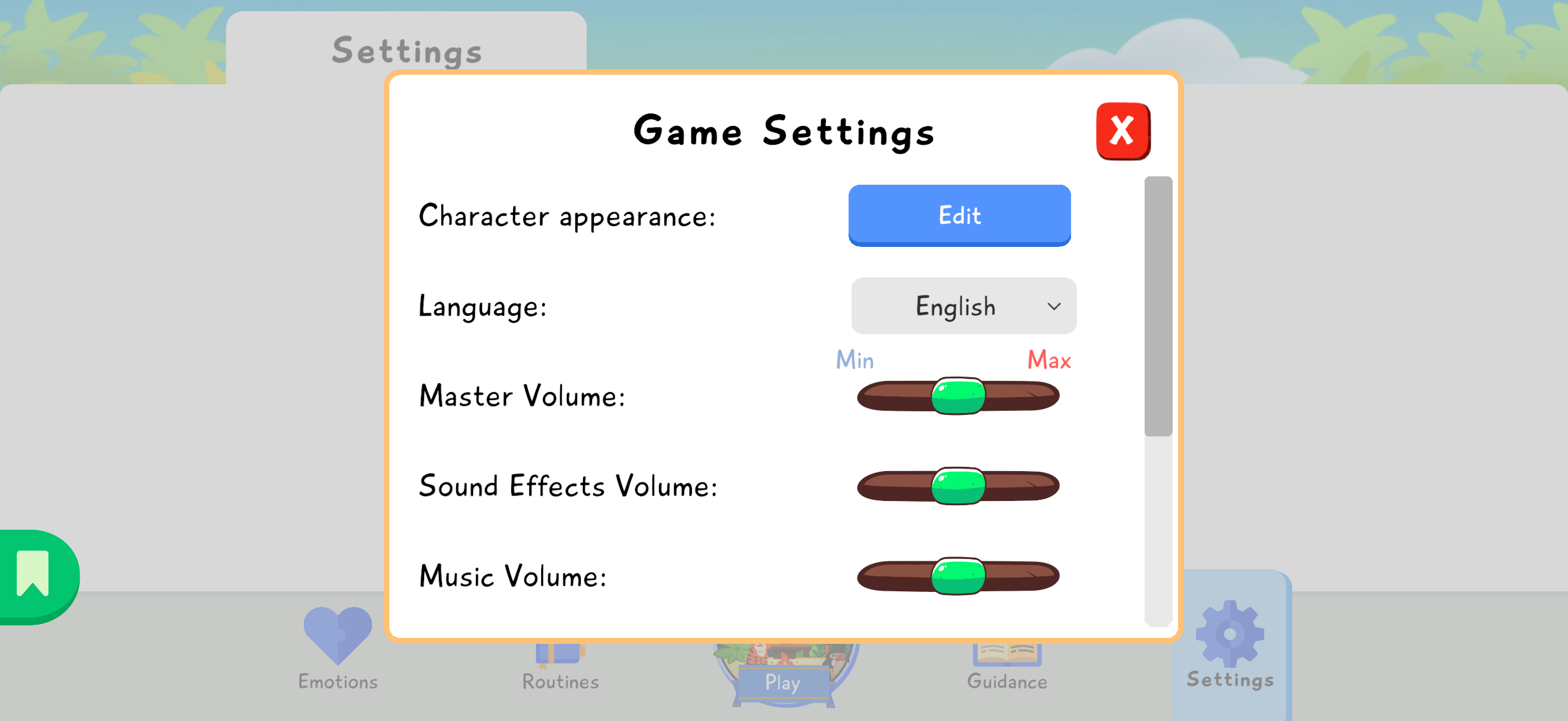
To personalize the game experience, go to Settings, then open Game settings. Lusha lets you adjust the game experience in detail so it can better fit younger children, children with dyspraxia, or simply each child’s comfort while playing.
These settings can be useful if the child gets tired quickly, if controls are hard to handle, if the phone is older, or if the sound environment needs to stay calm.
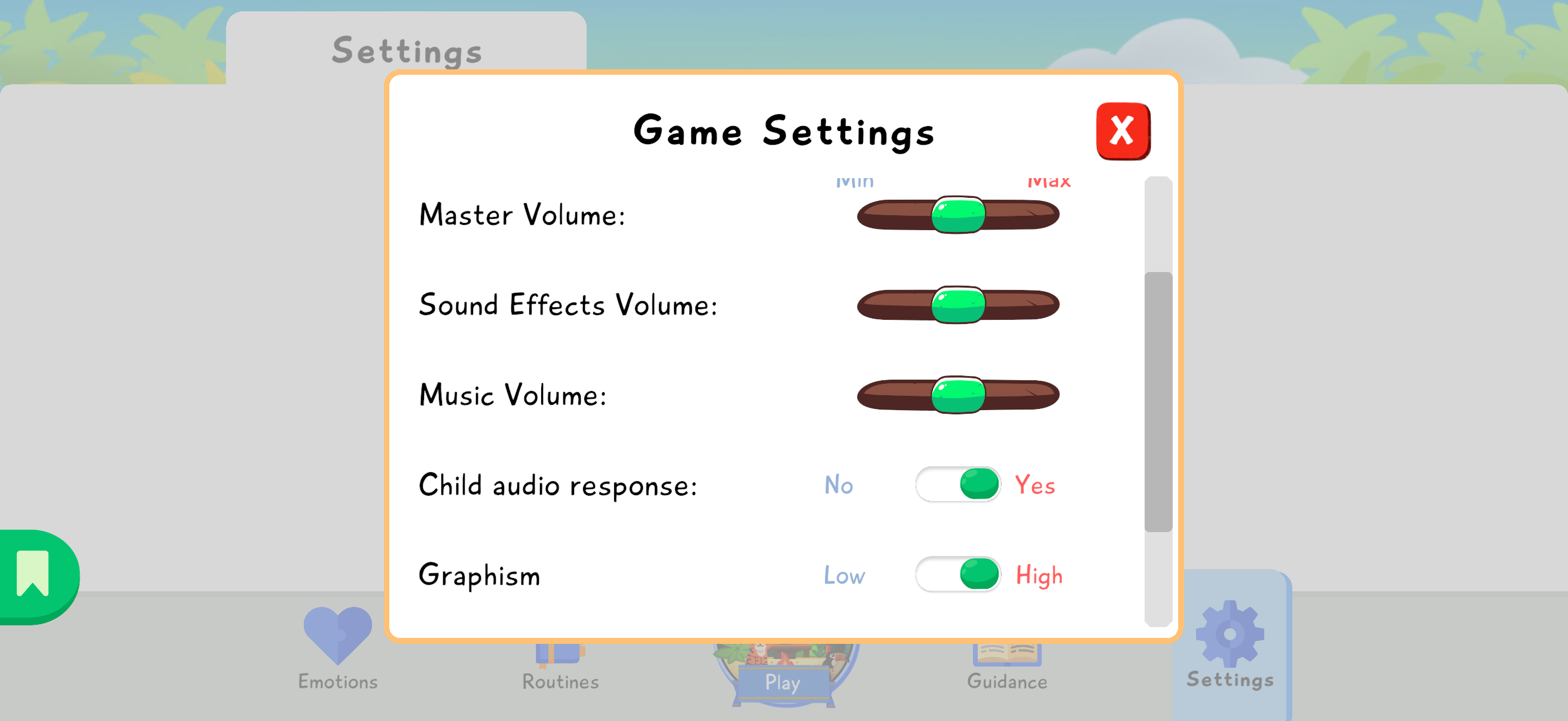
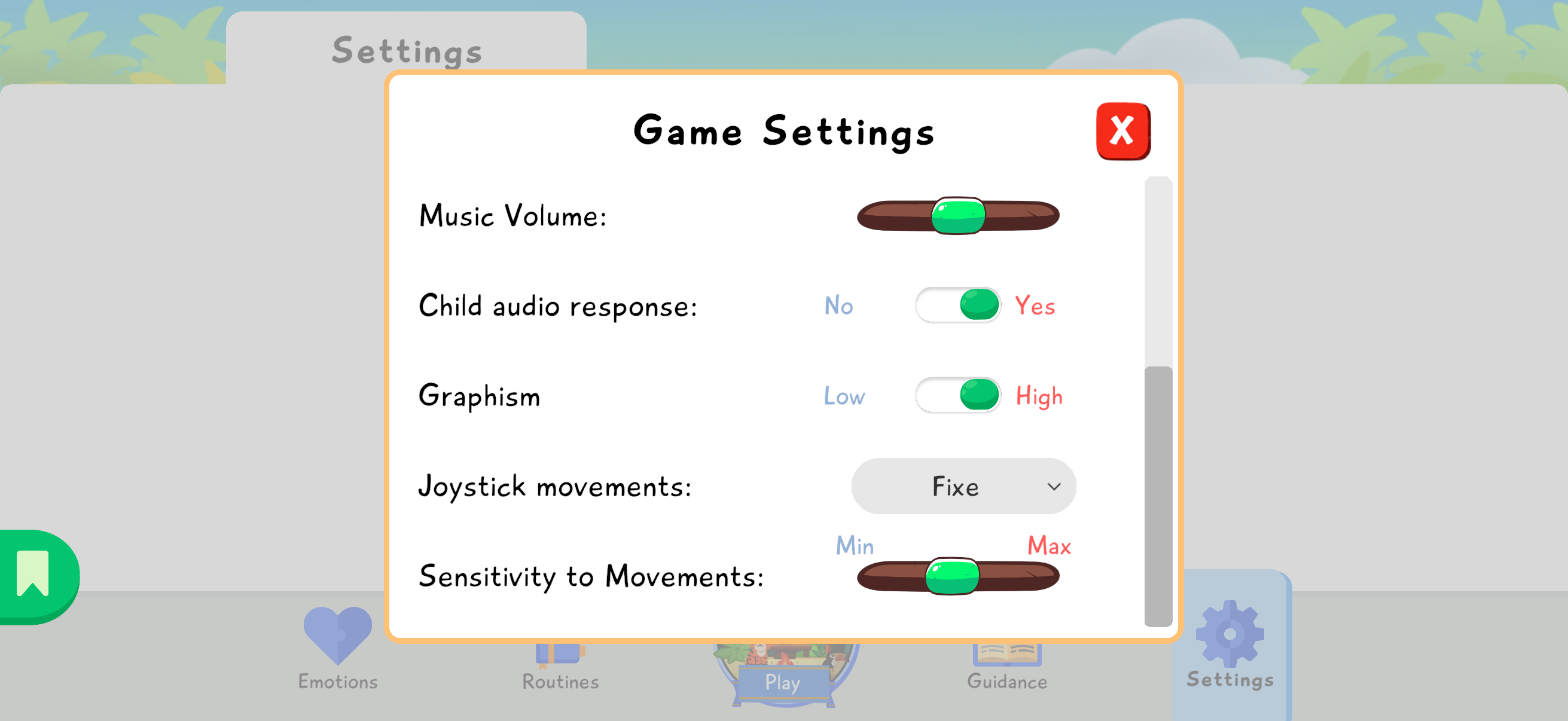
You can adjust the game volume at three levels: master volume, sound effects volume, and background music volume. You can also turn off the child’s audio responses if they are distracting, overstimulating, or not adapted to the context of use.
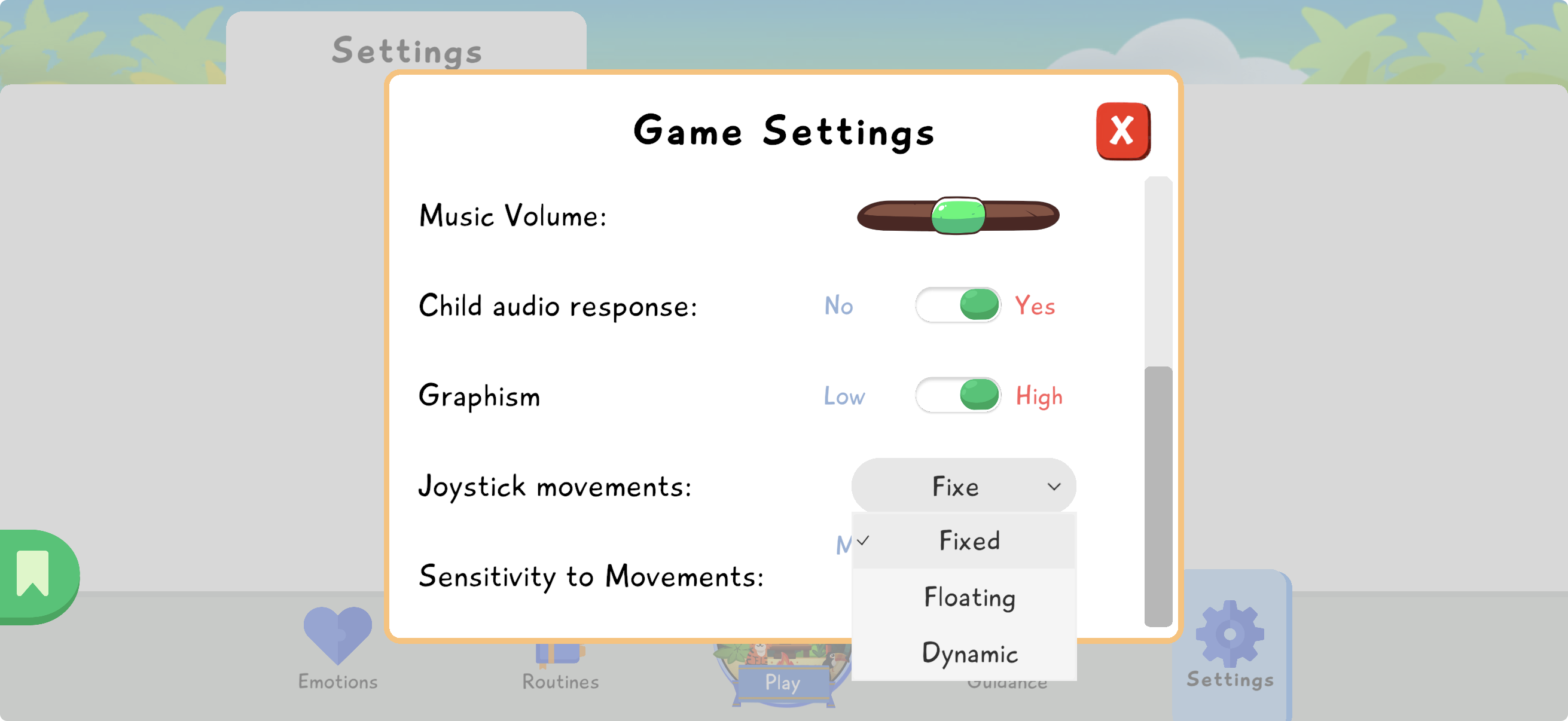
Joysticks
Section titled “Joysticks”You can adjust the joystick position to fit the child’s needs, height, dominant hand, or the way they hold the phone. Movement sensitivity can also be changed to make navigation smoother or more precise.
Character Appearance
Section titled “Character Appearance”You can modify the character chosen initially and adjust their appearance: skin tone, clothes, and hair. If you want to change the character’s gender, contact us at contact@lusha.care.
Graphics
Section titled “Graphics”You can adjust the game’s graphic quality. This setting helps adapt Lusha to older or less powerful phones, so the experience stays smoother.
Language
Section titled “Language”You can change the game language if needed. Lusha is available in English, French, Spanish, Italian, and Brazilian Portuguese.